


Table of Contents
A single flash can make a big difference in smartphone photography, especially when shooting portraits, products, or indoor scenes. But sometimes, one light isn't enough. You may want to brighten the subject while keeping the background darker, soften harsh shadows, or add a little separation between the subject and the background.
That's where a multi-flash setup comes in. By using multiple flashes and positioning each one for a different purpose, you can create more balanced lighting and have greater control over the final image.
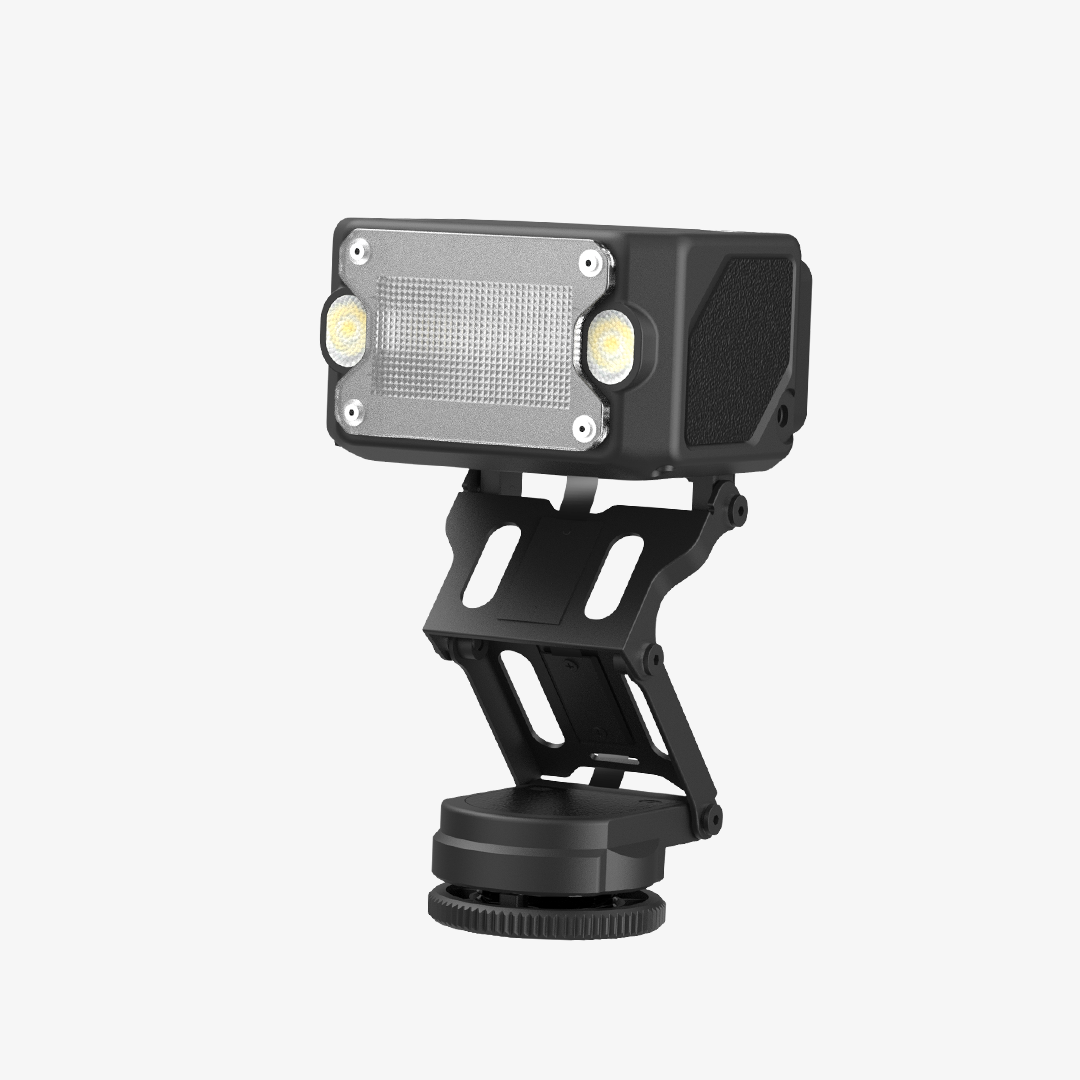
The NEEWER PF2 makes this easier with Bluetooth and 2.4G wireless connectivity. It works with compatible NEEWER flashes, allowing you to build a multi-light setup and manage different flash groups through the NEEWER Flash App. Here's how it works and a few setups you can try.

Why Use Multiple Flashes in Smartphone Photography?
Different light sources can serve different roles in a photograph. Instead of relying on one flash to illuminate everything, you can use multiple flashes to control specific areas of the scene.
Here are three common lighting roles:
- Key Flash: The main light source. It determines the overall direction and brightness of the light on your subject.
- Fill Flash: Adds light to darker areas and softens shadows created by the key flash. It helps reduce the contrast between bright and dark areas.
- Rim Flash / Backlight: Positioned behind or to the side of the subject, it adds highlights along the edges and helps separate the subject from the background.
You don't need a complicated setup to get started. Even two flashes can give you more flexibility than a single light, while adding a third gives you more control over the background and subject separation.
How NEEWER PF2 Enables Wireless Multi-Flash Control
The NEEWER PF2 is more than a smartphone flash. With its built-in 2.4G wireless system and NEEWER Flash App, it can work with compatible NEEWER flashes to create a flexible multi-flash setup.
1. Bluetooth and 2.4G Connectivity
The PF2 supports two ways to connect compatible flashes, making it possible to combine different models in one lighting setup.
Bluetooth-enabled models can be added directly through the NEEWER Flash App. For compatible 2.4G models without Bluetooth, you can add them manually in the app and match their wireless settings.
This means you don't have to use several identical flashes. You can combine different compatible NEEWER models to build a setup that suits your shooting needs.
Make sure your external flashes are updated to the latest supported firmware before connecting them. Firmware compatibility is required for proper wireless communication.
2. Independent Group Control
Once your flashes are connected, you can organize them into up to five groups, labeled A through E, in the NEEWER Flash App.
Each group can be adjusted separately, so you don't need to change every flash individually when refining your lighting. For example, you could assign your key flash to Group A, your fill flash to Group B, and your rim flash to Group C.
You can then adjust the flash power and modeling light brightness for each group through the app. If the subject looks too bright, lower the key flash. If the shadows are too dark, increase the fill flash. You can make these changes without repositioning every light or adjusting each unit one by one.
This makes it easier to experiment with different lighting ratios and fine-tune your setup while shooting.

3. Wireless Synchronization with 2.4G
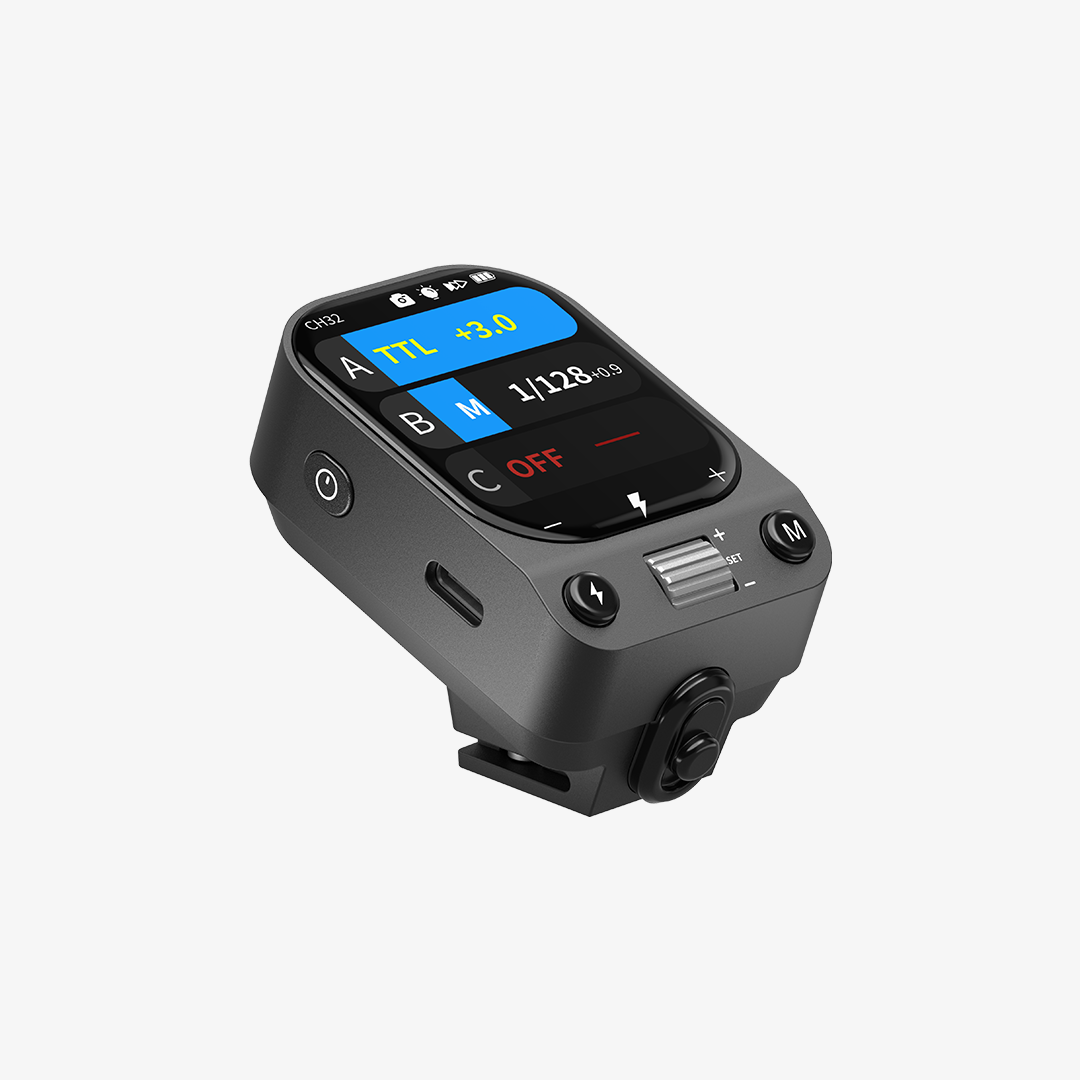
The PF2 works with the included PF-T phone transmitter, which sends wireless control signals to compatible NEEWER 2.4G flashes.
For compatible flashes that require manual 2.4G setup, make sure they are in the appropriate wireless mode and have matching Channel and ID settings. Once connected, they can receive the PF2's wireless commands and fire in sync.
With a wireless range of up to approximately 100 meters under suitable conditions, you can position compatible flashes around your shooting area without running sync cables between them.
The result is a more flexible setup that lets you position your flashes where the light is needed, rather than where a cable allows.

3 Multi-Light Setups to Try with Your Smartphone
You don't need to start with a large lighting kit. These three setups show how two or three flashes can work together for different types of smartphone photography.
1. Two-Flash Portrait Setup
Group A: Key Flash | Group B: Fill Flash

Start with one flash positioned in front of your subject and slightly to one side as the key light. Place a second flash on the opposite side at a lower power setting to fill in the shadows.
This setup creates more balanced portrait lighting while keeping some natural contrast on the face. Adjust the power of Groups A and B separately to find the balance you like.
2. Two-Flash Product Photography Setup
Group A: Key Flash | Group B: Background Flash

For product photography, use the key flash to illuminate the main subject. Position the second flash toward the background to brighten it or create a little more depth behind the product.
You can experiment with the background flash's position and power to create different looks, from a clean, evenly lit background to a more dramatic scene.
3. Three-Flash Portrait Setup
Group A: Key Flash | Group B: Fill Flash | Group C: Rim Flash

For more control, add a third flash behind or to the side of your subject. Keep the key flash as the main light, use the fill flash to soften shadows, and let the third flash create highlights around the subject's hair or shoulders.
This setup works particularly well when the background is close in brightness or color to your subject. The rim light helps create separation and gives the portrait a more dimensional look.
Tips for Getting the Most Out of a Wireless Multi-Flash Setup
A few simple adjustments can make your multi-flash setup easier to manage and more effective.
- Start with the Key Flash: Turn on your main light first and get the exposure where you want it. Then add fill and background lights one at a time.
- Adjust Each Group Separately: Use the NEEWER Flash App to fine-tune each group's power and modeling light brightness. Small adjustments can make a noticeable difference.
- Pay Attention to Flash Position: Moving a flash closer, farther away, or to a different angle can change the lighting significantly. Try adjusting its position before simply increasing the power.
- Check Firmware Compatibility: Before building your setup, make sure all compatible external flashes have the latest supported firmware installed.
FAQs
Can I use multiple flashes with a smartphone?
Yes. With the NEEWER PF2 and its included PF-T transmitter, you can wirelessly synchronize compatible NEEWER flashes for smartphone photography. This lets you use multiple light sources to illuminate your subject, fill shadows, or brighten the background.
Which flashes are compatible with the NEEWER PF2?
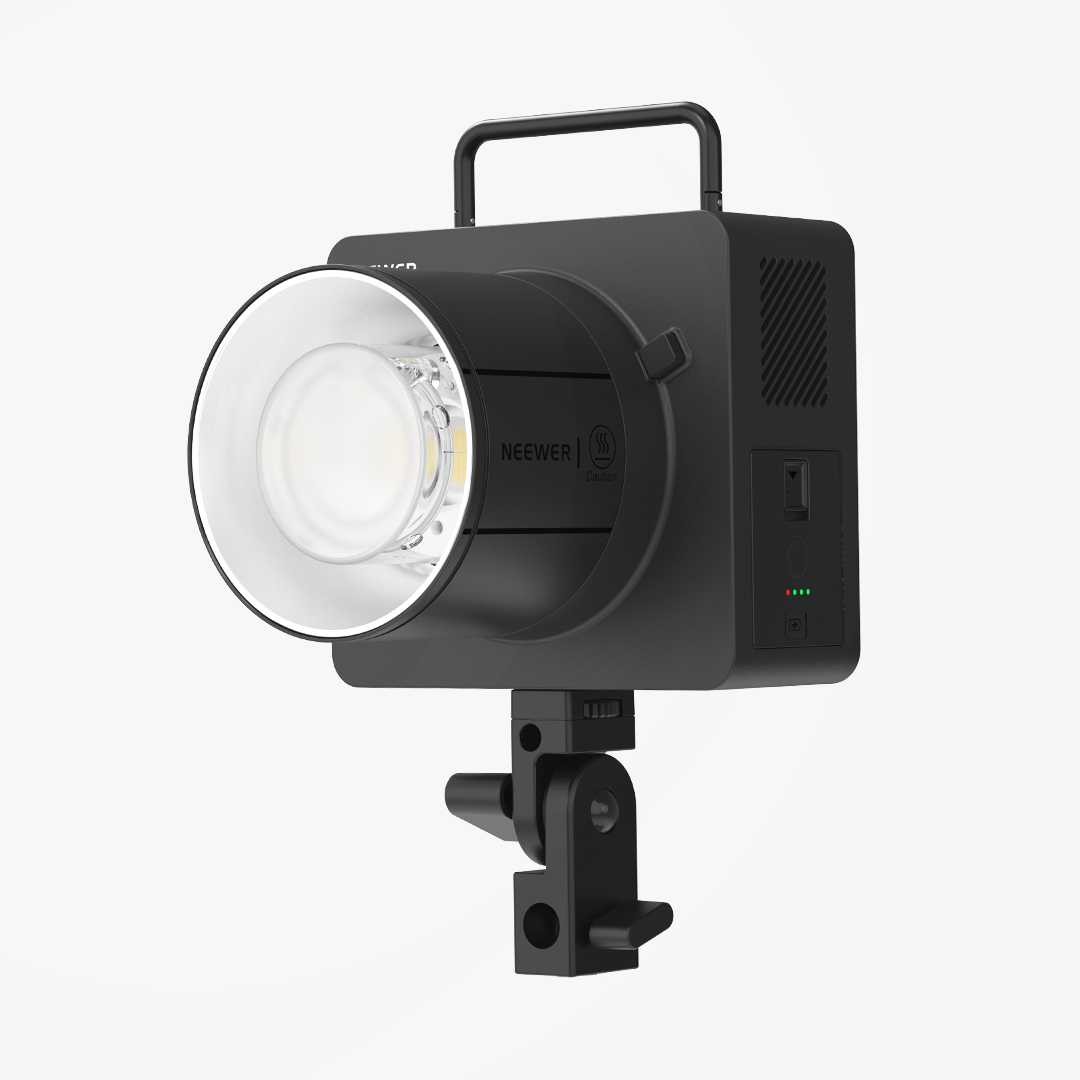
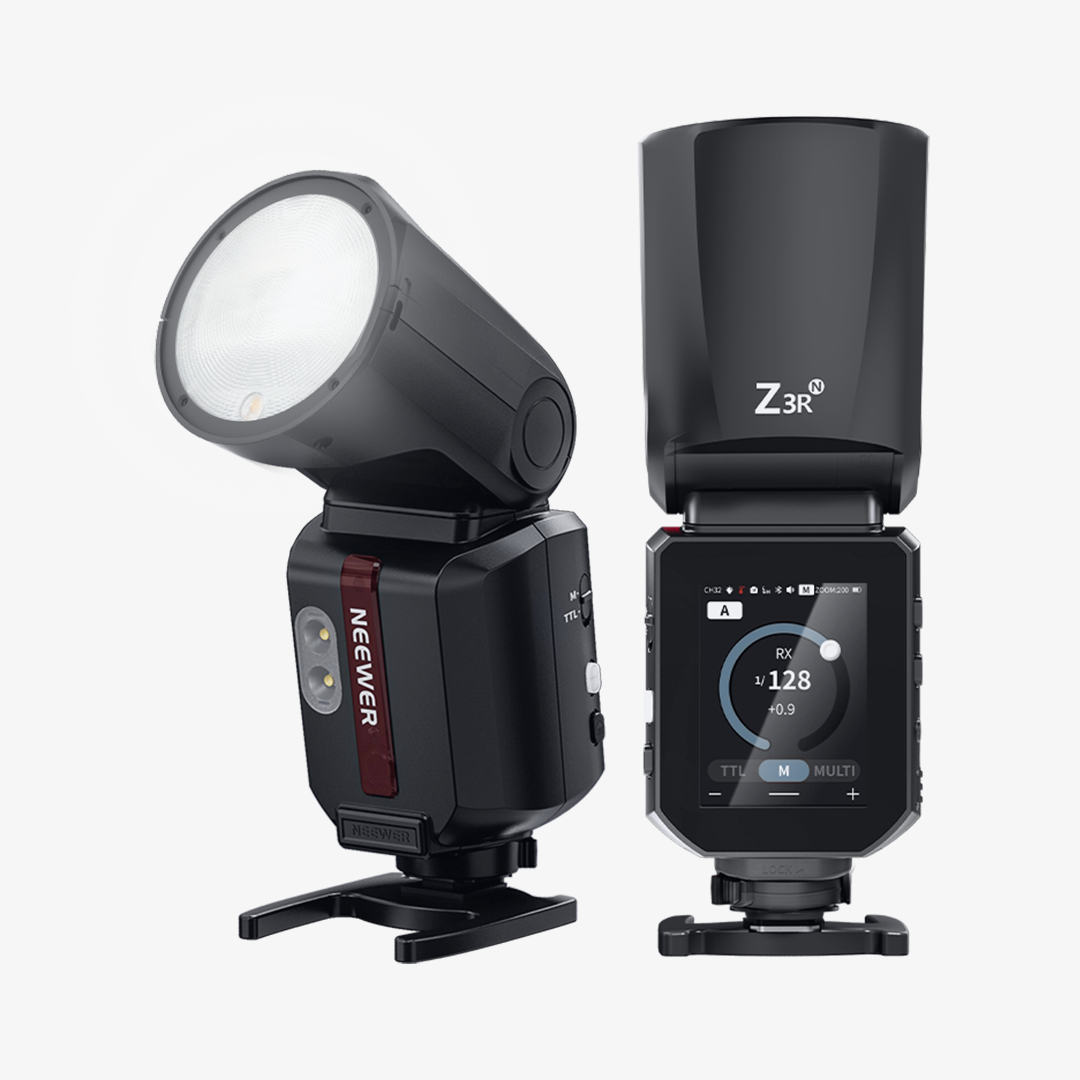
The PF2 supports wireless multi-flash synchronization with compatible NEEWER models, including the Z3R, Z2PRO, Q4, Q6, Z160U, Z15, and Z18. All external flashes must have the latest supported firmware installed. Check the product page for the latest compatibility information.
How many flashes can the PF2 control at once?
The PF2 supports up to five control groups (A–E), allowing you to organize compatible flashes into different groups and adjust them separately through the NEEWER Flash App.
For 2.4G-compatible flashes, there is no fixed limit on the number of units that can receive the PF2's wireless signals in theory. As long as they are within the wireless range and set to the same Channel and ID, they can receive and execute the commands from the PF-T transmitter.
Can I control each flash independently with the NEEWER Flash App?
You can control different flash groups separately through the NEEWER Flash App. Compatible flashes can be assigned to different groups, allowing you to adjust each group's flash power and modeling light brightness independently.
Do all flashes need Bluetooth to work with the PF2?
No. The PF2 supports both Bluetooth and 2.4G connectivity. Bluetooth-enabled models can be added through Bluetooth in the app, while compatible 2.4G models without Bluetooth can be added manually through the app's 2.4G device setup.